How to Transcribe Google Meet & Teams Meetings with MinuteAI Chrome Extension
Step-by-step guide to using MinuteAI's free Chrome extension for transcribing Google Meet and Microsoft Teams meetings privately, with local AI processing.

Recording and transcribing online meetings has become essential for remote work, but most solutions upload your conversations to cloud servers. MinuteAI’s Chrome Extension offers a different approach: capture Google Meet and Microsoft Teams audio directly in your browser, send it to your local Mac for AI processing, and generate transcripts without ever touching third-party cloud services.
The Chrome Extension is completely free with no usage limits. No paid subscription required for browser recording functionality.
Why Browser-Based Meeting Recording Matters
Traditional meeting recording tools require host permissions or cloud processing. When you click “Record” in Zoom or Google Meet, audio uploads to their servers for transcription. This creates problems for sensitive discussions involving client data, unreleased product plans, or confidential business strategy.
Browser-based local recording solves this by capturing what you hear as a participant, processing it on your own Mac, and keeping all data under your control. No meeting host permission needed. No cloud upload. No third-party access to conversation content.
The Privacy Problem with Cloud Meeting Recorders
Popular meeting transcription services like Otter.ai, Fireflies.ai, and Grain work by joining your meeting as a “bot participant” that records everything and sends audio to their servers. This approach creates several issues:
Notification Fatigue: Every participant sees “Otter Bot has joined the meeting” which can make attendees uncomfortable or change conversation dynamics.
Data Upload Requirements: Complete meeting audio uploads to vendor servers for processing. Even with encryption in transit, your conversations sit on infrastructure outside your organization’s control.
Compliance Complications: GDPR, HIPAA, SOC 2, and other frameworks often restrict or prohibit cloud processing of sensitive conversations. Legal and compliance teams increasingly block cloud transcription tools, forcing teams back to manual note-taking.
Third-Party Access: Service providers have access to conversation content for “improving models” or other purposes outlined in terms of service. Data breaches at vendors can expose corporate discussions.
Local browser recording eliminates these concerns by keeping audio processing on your personal device.
How MinuteAI Chrome Extension Works
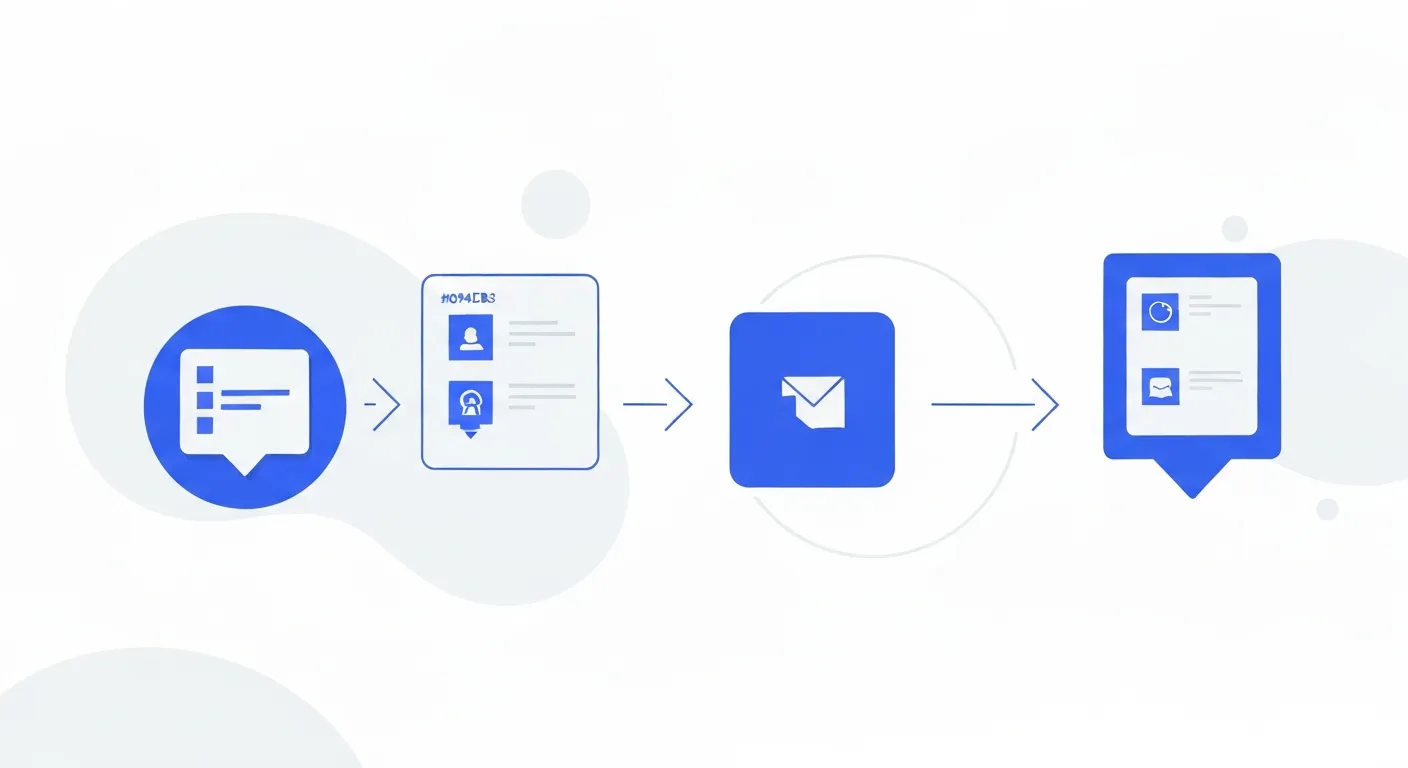
The architecture is straightforward:
- Chrome Extension captures meeting audio from the browser tab (Google Meet, Microsoft Teams, or other web-based meeting tools)
- Audio streams to localhost:8085 — a local server running on your Mac as part of MinuteAI app
- MinuteAI processes audio locally using on-device AI engines (WhisperKit, FluidAudio, or Apple Speech Analyzer)
- Transcript appears in MinuteAI app on your Mac, fully processed without any cloud upload
The key technical detail: localhost:8085 means audio never leaves your computer. The Chrome Extension communicates only with your own Mac, not external servers.
This architecture provides privacy equivalent to recording with a local microphone while supporting remote meetings where you’re a participant but not host.
Installation and Setup
Requirements:
- macOS 14 or later (Apple Silicon recommended)
- MinuteAI desktop app installed on your Mac
- Google Chrome or Chromium-based browser (Chrome, Edge, Brave, Arc)
Note: Both MinuteAI app and Chrome Extension are free. No credit card or subscription required for basic functionality.
Step 1: Install MinuteAI Desktop App
Download MinuteAI from getminute.app and install on your Mac. The app must be running for the Chrome Extension to work, as it provides the localhost server that receives audio from your browser.
-
Open the downloaded DMG file
-
Drag MinuteAI to your Applications folder
-
Launch MinuteAI and grant necessary permissions:
- Microphone access (for local recording)
- Accessibility access (for system audio capture if needed)
-
In MinuteAI settings, enable “Chrome Extension Server”:
- Go to Preferences → Extensions
- Toggle “Enable Chrome Extension Server” to ON
- Verify status shows “Listening on localhost:8085”
The meeting server runs in the background while MinuteAI is open. It does not accept connections from external networks — only your local browser can connect.
Step 2: Install Chrome Extension
Visit the Chrome Web Store and search for “MinuteAI Meeting Recorder” or use the direct installation link from MinuteAI’s website.
- Click “Add to Chrome”
- Grant requested permissions:
- Access browser tabs: Required to capture audio from meeting tabs
- Communicate with localhost: Enables sending audio to MinuteAI app on your Mac
- Pin the extension to your toolbar for easy access during meetings
Privacy Note: The extension only accesses audio from tabs you explicitly choose to record. It does not monitor browsing or access other tab content.
Step 3: Configure Default Transcription Settings
Click the MinuteAI extension icon in your Chrome toolbar to access settings:
Language Settings:
- Set your primary meeting language (supports 99 languages with WhisperKit)
- Extension UI available in 10 languages: English, Spanish, French, German, Japanese, Chinese, Korean, Portuguese, Italian, Vietnamese
Transcription Engine:
- WhisperKit (default): Best accuracy, supports 99 languages, moderate speed
- FluidAudio: 50× faster processing, supports 55 languages, slightly lower accuracy
- Apple Speech Analyzer: Uses built-in macOS speech recognition, 45+ languages, fast but less accurate for technical content
Speaker Diarization:
- Free tier: Up to 3 speakers identified
- Pro plan: Unlimited speakers with improved diarization accuracy
Audio Quality:
- Standard (default): Balances file size and quality
- High: Better quality for difficult audio (background noise, accents), larger file size
Settings apply to all future recordings. You can change engine per-recording if needed.
Step 4: Test the Connection
Before your first important meeting, verify the extension communicates with MinuteAI:
- Ensure MinuteAI desktop app is running
- Open any Google Meet or Teams meeting (you can create a test meeting)
- Click the MinuteAI extension icon
- Check the status indicator:
- Green: Connected to MinuteAI app successfully
- Red: Cannot connect to localhost:8085 — verify app is running and extension server is enabled
If connection fails, restart MinuteAI app and check firewall settings to ensure localhost connections are permitted.
Recording Google Meet Meetings
Google Meet is the most common use case for browser-based transcription. Here’s the complete workflow.
Starting a Recording
- Join your Google Meet meeting as you normally would
- Click the MinuteAI extension icon in your Chrome toolbar
- Select “Record This Tab” from the extension popup
- Extension begins capturing audio — you’ll see a recording indicator (red dot) on the extension icon
- Participate in the meeting normally — no need for host permissions or notifying other participants
Important: The extension records what you hear through your browser. If you mute your audio output or leave the tab, recording pauses. Keep the tab active or pinned.
During the Meeting
The extension provides minimal UI to avoid distraction:
- Red dot on extension icon: Indicates active recording
- Click icon to see duration: Shows recording time without opening full popup
- Pause if needed: Click extension icon → “Pause Recording” for breaks or sidebar conversations you don’t want captured
- Resume: Click “Resume Recording” when ready to continue
Audio buffers locally in the extension and streams to MinuteAI in real-time. If your Mac experiences high CPU load, the extension queues audio to prevent drops.
Stopping and Processing
When the meeting concludes:
- Click the extension icon and select “Stop Recording”
- Extension finalizes audio transfer to MinuteAI (takes 5-15 seconds)
- MinuteAI begins automatic transcription — you’ll see a notification when processing starts
- Close the meeting tab — recording is already saved in MinuteAI
Processing time depends on meeting length and selected transcription engine. A 30-minute meeting typically takes:
- WhisperKit: 8-12 minutes
- FluidAudio: 1-2 minutes
- Apple Speech Analyzer: 2-4 minutes
Processing speed varies by Mac hardware and system load.
Reviewing and Exporting Transcripts
- Open MinuteAI desktop app
- Find your recording in the library (sorted by date, newest first)
- Review the transcript:
- Speaker-labeled text (if diarization enabled)
- Timestamps for each utterance
- Searchable content
- Use AI Enhancement (free tier: 10/month; Pro: unlimited):
- Generate executive summary
- Extract action items and decisions
- Create meeting notes in structured format
- Export as needed:
- Plain text (TXT)
- Markdown (MD) for knowledge bases
- PDF (Pro only) for sharing
Exported transcripts integrate with Obsidian, Notion, Roam Research, or any text-based knowledge management system.
Recording Microsoft Teams Meetings
Microsoft Teams web app works identically to Google Meet with MinuteAI extension.
Teams-Specific Considerations
Use Teams Web App, Not Desktop App: The Chrome Extension only captures audio from browser tabs. If you typically use the Microsoft Teams desktop app, switch to the web version (teams.microsoft.com) for recording.
Audio Output Configuration: Ensure Teams audio plays through your selected output device (speakers or headphones), not Bluetooth devices which can have routing complications on macOS.
Screensharing and Recording: You can simultaneously use Teams’ built-in recording (which uploads to Microsoft cloud) and MinuteAI local recording if you need both cloud backup and local privacy-preserving transcript.
Teams Recording Workflow
- Navigate to teams.microsoft.com in Chrome
- Join your meeting from the browser
- Click MinuteAI extension → “Record This Tab”
- Meeting audio streams to localhost and processes on your Mac
- Stop recording when meeting ends
- Transcript available in MinuteAI app
Participants do not see any indication of local recording unless you verbally inform them, as this captures your audio output rather than injecting a bot into the meeting.
Multilingual Meeting Support
The Chrome Extension handles multilingual meetings through MinuteAI’s multi-engine support.
Single Language Meetings:
- Select primary language in extension settings
- WhisperKit supports 99 languages including English, Spanish, French, German, Chinese, Japanese, Korean, Arabic, Hindi, Portuguese, Russian, Italian, Dutch, and 86+ others
Multilingual Meetings:
- WhisperKit auto-detects language changes within the same recording
- Transcript indicates language switches:
[SPANISH] Esta reunión... [ENGLISH] This meeting... - Works well for international teams where participants switch between languages mid-conversation
Translation Workflow:
- Record in original languages
- Use AI Enhancement with custom prompt: “Translate this transcript to English”
- Local language models (Claude, OpenAI via API) handle translation on-device or via your own API keys
Extension UI language is independent of transcription language. You can use Chinese UI while transcribing English meetings, for example.
Privacy and Security
Understanding data flow is critical for evaluating privacy claims.
What Stays Local
- All audio files: Stored only on your Mac, never uploaded to MinuteAI servers or third parties
- Transcripts: Generated on-device using local AI models (WhisperKit, FluidAudio, Apple Speech Analyzer)
- AI summaries: If using local models (MLX, Apple Intelligence), processing happens on your Mac
- Extension settings: Saved in Chrome’s local storage, not synced to cloud
What Requires Internet (Optional)
- OpenAI Whisper API: If you choose this transcription engine, audio uploads to OpenAI for processing (optional, not default)
- Cloud AI enhancement: If you select Claude API or OpenAI API for summarization, transcript text uploads to respective services (optional)
- Software updates: MinuteAI checks for updates over the internet, but no usage data is transmitted
Data You Control
You own all recordings and transcripts. No license grants MinuteAI rights to your content. You can:
- Export and delete at any time
- Process recordings offline (no internet required after initial app installation)
- Use local AI models exclusively to avoid any data transmission
Comparison with Cloud Alternatives
| Feature | MinuteAI Extension | Otter.ai Extension | Fireflies.ai |
|---|---|---|---|
| Audio Processing | Localhost (your Mac) | Otter cloud servers | Fireflies cloud |
| Transcript Storage | Your device only | Otter cloud | Fireflies cloud |
| Host Permission Required | No | No (browser extension mode) | Yes (bot joins meeting) |
| GDPR/HIPAA Friendly | Yes (no data export) | No (cloud processing) | No (cloud processing) |
| Offline Capability | Yes (after setup) | No | No |
| Meeting Bot Notification | No (silent participant recording) | No (browser mode) | Yes (“Fireflies Bot joined”) |
| Pricing | Free extension + app | Free tier limited, then $10/month | Free tier limited, then $10/month |
The key differentiator: MinuteAI processes everything on infrastructure you control (your Mac) rather than vendor-controlled cloud servers.

Troubleshooting Common Issues
Extension Shows “Cannot Connect to MinuteAI”
- Verify MinuteAI desktop app is running
- Check Preferences → Extensions → “Enable Chrome Extension Server” is ON
- Restart MinuteAI app
- Ensure no firewall is blocking localhost:8085
- macOS Privacy settings: Grant MinuteAI necessary permissions
Recording Starts But No Transcript Appears
- Check MinuteAI app for error notifications
- Verify you selected a transcription engine in extension settings
- Ensure sufficient disk space for audio files (1 hour = ~50MB)
- Review system requirements: macOS 14+, Apple Silicon recommended
Audio Quality Is Poor / Transcription Inaccurate
- Increase audio quality setting in extension preferences
- Use headphones to reduce echo captured by microphone
- Request meeting participants reduce background noise
- Try different transcription engine (WhisperKit generally most accurate)
- For technical jargon, review transcript and create custom find-replace dictionary
Meeting Tab Audio Doesn’t Capture
- Ensure the tab is active or pinned (backgrounded tabs may pause audio)
- Check Chrome audio output settings: audio must play to capture
- Verify browser permissions: extension needs tab audio access
- Some meeting platforms require interaction to start audio (unmute/mute toggle once)
Extension Works But Processing Is Very Slow
- Switch to FluidAudio engine for 50× faster transcription (slight accuracy trade-off)
- Close other resource-intensive apps during processing
- For very long meetings (2+ hours), expect proportionally longer processing
- Older Intel Macs process slower than Apple Silicon — consider upgrading or use cloud engines
Transcript Has Wrong Language
- Check extension language setting matches meeting language
- Enable auto-detect if multilingual meeting
- Some languages require specific models (ensure selected engine supports that language)
Advanced Usage Tips
Batch Processing Multiple Meetings
Record several meetings throughout the day, then process overnight:
- Record meetings using extension (audio saves immediately)
- Transcripts queue automatically in MinuteAI
- Leave Mac running overnight to process queue
- Review all transcripts in the morning
Pro plan enables unlimited batch processing for multi-meeting workflows.
Integration with Knowledge Management
Export transcripts as Markdown and integrate with:
- Obsidian: Paste transcript, add tags, link to meeting notes
- Notion: Import as page, connect to meeting database
- Roam Research: Create daily note entry with transcript and bidirectional links
- DEVONthink: Import for full-text search across all meeting archives
Custom AI Prompts for Specialized Summaries (Pro Feature)
Create custom enhancement prompts for specific meeting types:
- “Extract all technical requirements and architecture decisions”
- “List customer objections and sales responses”
- “Identify all risk factors and mitigation strategies discussed”
- “Create board meeting minutes in formal corporate format”
Folder Monitoring for Automated Processing (Pro Feature)
Set up watched folder workflows:
- Configure MinuteAI to monitor a folder (e.g.,
~/Meetings/To Process/) - Extension saves recordings to that folder
- MinuteAI auto-transcribes new files
- Processed transcripts move to
~/Meetings/Completed/
This enables fully automated meeting documentation with zero manual intervention.
Free vs Pro Features for Chrome Extension
The Chrome Extension itself is completely free with no usage limits. Feature differences apply to the MinuteAI desktop app that processes recordings:
Free Tier Includes:
- Unlimited recordings under 10 minutes each
- 10 AI enhancements per month
- Speaker diarization up to 3 speakers
- Export as TXT or Markdown
- Chrome Extension (unlimited use)
Pro Plan Adds ($7.99/month, $69.99/year, or $99.99 one-time, 7-day free trial):
- Unlimited recording length (multi-hour meetings)
- Unlimited batch processing
- Unlimited AI enhancements
- Unlimited speakers in diarization
- PDF export
- Video OCR + Vision Language Models
- Document attachment and OCR
- Folder monitoring automation
- Custom AI prompts
- Priority support
Note: Most professional meetings exceed 10 minutes. For typical 30-60 minute meetings, Pro plan is required. The free tier is suitable for quick standup recordings or testing the workflow.
Legal and Compliance Considerations
Recording Consent Laws:
Different jurisdictions have different requirements for recording conversations:
- One-party consent (US: most states, UK, Canada): You can record conversations you participate in without informing others
- Two-party/all-party consent (US: California, Florida, and others): All participants must consent to recording
Check your local laws before recording meetings. Even where one-party consent is legal, organizational policies may require disclosure. Many companies mandate “This meeting is being recorded” announcements.
GDPR Compliance:
For EU-based users or meetings with EU participants:
- Local processing satisfies GDPR data minimization requirements
- No data export to third countries (data stays on your Mac)
- You remain data controller with full control over recordings
- Must still inform participants of recording in many cases
Enterprise Policies:
Some organizations prohibit all meeting recording, local or cloud. Verify your company’s acceptable use policy before recording work meetings.
MinuteAI’s Chrome Extension provides cloud-free meeting transcription for Google Meet, Microsoft Teams, and other browser-based meeting platforms. By processing audio locally on your Mac, you gain transcription capabilities without sacrificing conversation privacy or requiring host permissions.
The extension is free to use with no artificial limits on browser recording. Processing features align with MinuteAI’s standard free and Pro tiers based on recording length and AI enhancement usage.
For comprehensive local AI workflows, explore our guide on turning meeting recordings into notes or learn about processing sensitive data locally. Download MinuteAI and install the Chrome Extension at getminute.app.
Record Google Meet & Teams Calls
MinuteAI Chrome Extension captures meeting audio and transcribes locally. Works with Google Meet and Microsoft Teams.
Get Chrome Extension