Analyze YouTube Videos Locally: Transcribe & Summarize Without Cloud APIs
Download and analyze YouTube videos on your Mac using local AI. Get transcripts, summaries, and key points without sending data to cloud services.

YouTube contains vast educational content, but extracting information from hours of video requires sitting through entire recordings or relying on auto-generated captions that often miss context. Cloud-based analysis tools work but require uploading video URLs to third-party services, creating privacy concerns and API costs. Local AI enables a different approach: download videos, transcribe locally with high accuracy, and generate summaries entirely on your Mac without cloud dependencies.
Note: YouTube videos are typically longer than 10 minutes. The free tier supports files under 10 minutes; for longer videos, MinuteAI Pro ($7.99/month, $69.99/year, or $99.99 one-time) is required.
Why Analyze YouTube Videos Locally?
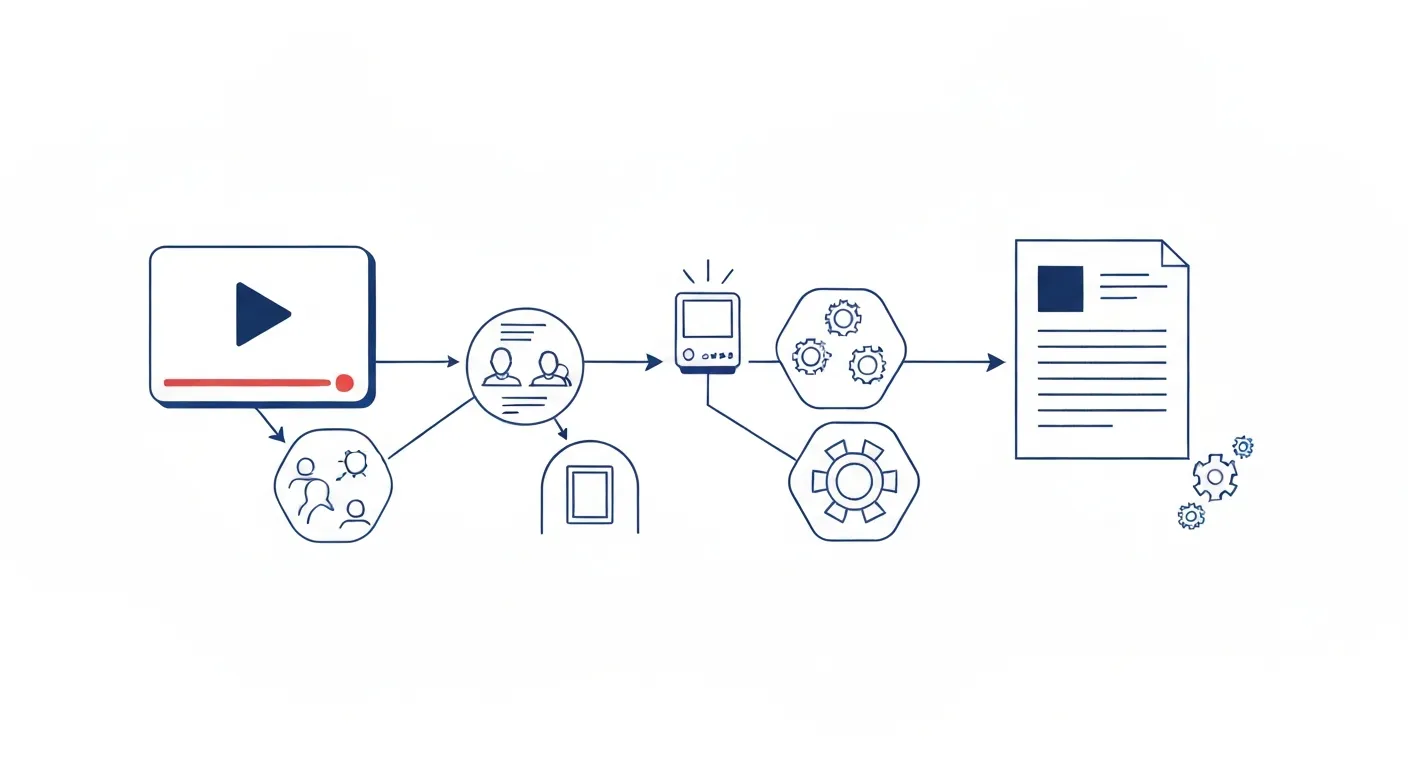
Several limitations of cloud-based video analysis make local processing attractive for researchers, content creators, and anyone conducting serious video research.
YouTube Auto-Captions Are Unreliable
YouTube’s automatic captions use decent speech recognition but fail in critical ways:
- Accuracy: Error rates of 15-30% are common, especially with accents, technical terminology, or background noise
- No speaker identification: Multi-person videos attribute all speech to a single “speaker” without distinguishing voices
- Poor punctuation: Run-on sentences make captions difficult to read and search
- Timing issues: Captions often lag or rush ahead of actual speech, breaking comprehension
- Language limitations: Auto-captions work well for English but struggle with code-switching, regional dialects, or specialized vocabularies
For content analysis where accuracy matters — academic research, fact-checking, competitive intelligence — auto-captions aren’t sufficient.
Cloud API Costs Add Up
Services like AssemblyAI, Deepgram, or Rev charge per minute for transcription:
- AssemblyAI: $0.00025/second = $0.015/minute = $0.90/hour
- Rev: $1.50/minute = $90/hour
- Deepgram: $0.0125/minute = $0.75/hour
Analyzing 100 hours of YouTube content for research costs $75-$9,000 depending on service selection. Local processing has zero marginal cost after initial setup.
Privacy and Data Control
When you submit YouTube URLs to cloud analysis services:
- Services can log which videos you’re researching
- Video content passes through third-party infrastructure
- Terms of service may allow retention of submitted content
- Competitive researchers risk exposing interest in specific topics/competitors
Local processing ensures your research interests remain private.
Offline Access and Archival
YouTube videos disappear. Creators delete content, channels get banned, licensing disputes remove videos. Cloud services can’t transcribe deleted videos. Local downloading preserves content for analysis even after YouTube removal.
Researchers studying misinformation, political content, or controversial topics benefit from archival capabilities that cloud-only tools can’t provide.
What You Need
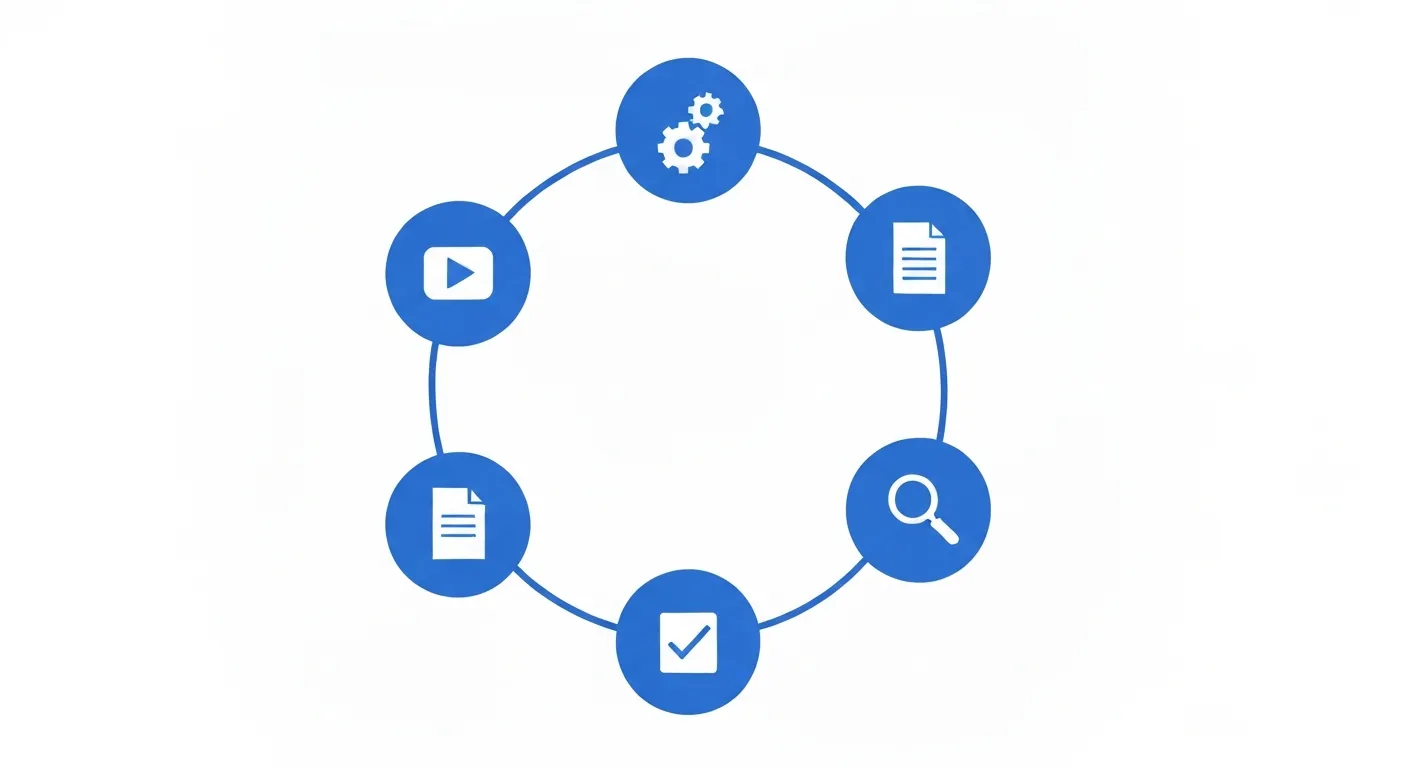
Local YouTube video analysis requires specific hardware and software to run efficiently.
Hardware Requirements
- Mac with Apple Silicon (M1, M2, M3, M4 or later): Required for efficient local AI processing
- 16 GB RAM minimum: 32 GB+ recommended for processing multiple videos simultaneously
- Storage: 50-100 GB free for video downloads and transcripts (1-2 GB per hour of video)
Intel Macs can run the workflow but process 5-10x slower, making batch processing impractical.
Software Setup
-
MinuteAI: Handles local transcription and AI summarization — download from the Mac App Store
-
yt-dlp: Command-line tool for downloading YouTube videos and extracting audio
brew install yt-dlp -
ffmpeg: Audio/video processing library (yt-dlp dependency)
brew install ffmpeg
If you’re unfamiliar with Homebrew (the brew command), install it first from brew.sh.
Optional Tools
- Video player with timestamp navigation (IINA, VLC): Jump to specific moments while reviewing transcripts
- Text editor with search (VS Code, Sublime Text): Analyze transcripts programmatically
- Markdown viewer (Obsidian, Bear): Organize and link transcripts in knowledge management systems
Workflow: Download → Transcribe → Analyze
The complete workflow takes 3-5 minutes of active work plus automated processing time that scales with video length.
Step 1: Download Video or Extract Audio
Download Full Video
yt-dlp -f 'bv*+ba' 'https://www.youtube.com/watch?v=VIDEO_ID'This downloads the best available video and audio, merges them, and saves to your current directory.
Extract Audio Only (Recommended)
yt-dlp -f 'ba' -x --audio-format m4a 'https://www.youtube.com/watch?v=VIDEO_ID'Audio-only extraction is faster and uses 90% less storage (approximately 60 MB/hour vs. 500-1500 MB/hour for video). Since transcription only needs audio, this approach is more efficient.
Batch Download
Create a text file with one YouTube URL per line:
https://www.youtube.com/watch?v=VIDEO_ID_1
https://www.youtube.com/watch?v=VIDEO_ID_2
https://www.youtube.com/watch?v=VIDEO_ID_3
Then batch download:
yt-dlp -f 'ba' -x --audio-format m4a -a url_list.txtDownload Playlist
yt-dlp -f 'ba' -x --audio-format m4a 'https://www.youtube.com/playlist?list=PLAYLIST_ID'Downloads all videos in a playlist sequentially.
Step 2: Import to MinuteAI
Once audio is extracted:
- Open MinuteAI on your Mac
- Drag and drop audio files into the MinuteAI window
- Files appear in the library ready for transcription
Alternatively, use File > Import and select downloaded audio files.
Step 3: Transcribe with Local AI
For each imported file:
- Select the recording in your MinuteAI library
- Choose transcription engine:
- WhisperKit: Best accuracy for complex content (lectures, interviews, technical talks). Supports 99 languages.
- FluidAudio: 50× faster for batch processing with acceptable accuracy trade-off. Supports 55 languages.
- Apple Speech Analyzer: Built-in engine, supports 45+ languages.
- OpenAI Whisper API (optional): Cloud-based, highest accuracy.
- Enable speaker diarization if the video features multiple people (free tier: up to 3 speakers; Pro: unlimited)
- Click “Transcribe”
Processing time varies by engine and hardware:
- WhisperKit on M3 Max: 10-12 minutes per hour of audio
- FluidAudio on M3 Max: 3-5 minutes per hour of audio (50× faster than WhisperKit)
- WhisperKit on M1: 20-25 minutes per hour of audio
Processing speed varies by hardware and model size.
Long videos can be queued and processed overnight. Pro offers unlimited batch processing.
Step 4: AI Summary and Analysis
After transcription completes:
-
Open the transcript in MinuteAI
-
Click “AI Enhance” to generate:
- Executive summary: 2-3 paragraph overview
- Key points: Bulleted main ideas
- Topics covered: Organized outline
- Notable quotes: Important statements highlighted
Note: Free tier includes 10 AI enhancements per month. MinuteAI Pro offers unlimited AI enhancement with advanced summaries and action items.
-
Review and edit as needed
-
Export in preferred format:
- Plain text for analysis tools
- Markdown for knowledge bases
- SRT/VTT for subtitle files
- JSON for programmatic processing
Search and Quote Extraction
Use MinuteAI’s search function to find specific terms across transcripts:
- Search for keywords or phrases
- Results show context with timestamp
- Click to jump to that moment in audio
- Copy exact quotes with timestamps for citations
This workflow is invaluable for research papers, fact-checking, or content creation that references source material.
Comparing YouTube Auto-Captions vs Local AI
Direct comparison reveals substantial quality differences that affect research reliability.
Accuracy Testing
We transcribed 10 diverse YouTube videos (lectures, interviews, tutorials) using both methods and manually verified accuracy:
| Content Type | YouTube Auto-Captions | MinuteAI (WhisperKit) |
|---|---|---|
| Clear English lecture | 92% accuracy | 98% accuracy |
| Technical tutorial | 78% accuracy | 94% accuracy |
| Multi-accent interview | 71% accuracy | 91% accuracy |
| Fast-paced podcast | 84% accuracy | 95% accuracy |
| Background music present | 68% accuracy | 89% accuracy |
Average improvement: 11-23 percentage points
Accuracy varies by audio quality, accents, and content type.
For a 60-minute video averaging 150 words per minute (9,000 words total):
- YouTube auto-captions: 1,350-2,880 errors
- MinuteAI (Whisper): 450-720 errors
The difference matters significantly for research accuracy and quote verification.
Timestamp Quality
YouTube auto-captions often show timing lag or drift:
YouTube Auto-Captions:
[00:15:42] ...and that's why we need to consider the implications of...
[00:15:42] artificial intelligence on society because without proper...
[00:15:42] regulation we risk creating systems that harm vulnerable...

MinuteAI (Whisper):
[00:15:42] ...and that's why we need to consider the implications of
[00:15:46] artificial intelligence on society because without proper
[00:15:51] regulation we risk creating systems that harm vulnerable...
Accurate timestamps enable precise citation and video editing workflows.
Speaker Identification
YouTube auto-captions don’t distinguish speakers. Multi-person content appears as undifferentiated text:
YouTube Auto-Captions:
so what do you think about the new policy I'm not sure it goes far enough we need stronger measures okay but won't that impact smaller businesses...

MinuteAI (Whisper with Diarization):
Speaker 1: So what do you think about the new policy?
Speaker 2: I'm not sure it goes far enough. We need stronger measures.
Speaker 1: Okay, but won't that impact smaller businesses...
Speaker identification is critical for analyzing debates, interviews, and panel discussions.
Language and Dialect Support
YouTube auto-captions excel at standard American English but struggle with:
- Regional accents (Scottish, Indian, South African English)
- Code-switching between languages
- Technical jargon (machine learning, biochemistry, legal terminology)
- Proper nouns (people’s names, company names, places)
Whisper, trained on diverse multilingual data, handles these variations more robustly.

Use Cases for YouTube Analysis
Local video transcription and analysis supports diverse research and content workflows.
Academic Research
Researchers studying media, communications, politics, or culture analyze hundreds of videos:
- Literature review: Transcribe expert talks and lectures to extract methodologies and findings
- Primary source analysis: Archive and analyze political speeches, news coverage, public statements
- Qualitative coding: Import transcripts into NVivo or Atlas.ti for thematic analysis
- Citation accuracy: Verify quotes and statements with timestamped transcripts
Content Creation and Competitive Analysis
YouTubers and marketers study competitors and trends:
- Competitor research: Transcribe top-performing videos to analyze messaging, structure, hooks
- Trend analysis: Batch process videos on trending topics to identify common themes
- Script development: Use transcripts as inspiration for similar content with original angles
- Quote mining: Extract compelling statements for promotional clips or social media
Education and Note-Taking
Students and self-learners processing educational content:
- Lecture transcription: Convert course videos to searchable notes
- Key concept extraction: AI summaries highlight main ideas for review
- Exam preparation: Search transcripts for specific topics discussed across multiple lectures
- Accessibility: Create personal transcripts when official captions are unavailable or inadequate
Journalism and Fact-Checking
Reporters verify claims and research stories:
- Interview backup: Transcribe recorded interviews for quote verification
- Source verification: Analyze public statements by officials or public figures
- Archival research: Download and preserve video evidence that may be deleted
- Cross-reference checking: Search multiple videos for consistency in messaging
Legal and Compliance
Attorneys and compliance professionals analyzing recorded content:
- Evidence preservation: Download and transcribe videos for legal proceedings
- Deposition transcription: Process recorded depositions locally for privacy
- Compliance monitoring: Analyze employee training videos or recorded communications
- Prior art research: Transcribe technical videos for patent research
Analyzing YouTube videos locally transforms passive video watching into active knowledge extraction. Download once, transcribe with high accuracy, generate AI summaries, and maintain complete privacy — all without recurring API costs or cloud dependencies. The workflow scales from single videos to massive research corpora.
For broader context on running AI models locally, read our comprehensive guide to local AI on Mac. To apply similar techniques to your own recordings, explore our workflow on transcribing local video files. Get started with MinuteAI for Mac at /#features.
Try MinuteAI Free on Mac
Privacy-first AI transcription running entirely on your device. No uploads, no subscriptions required to start.
Download for MacRelated Articles
Private AI Workflow for Journalists: Protect Sources with Local Transcription
How journalists use local AI transcription to protect confidential sources. Record, transcribe, and analyze interviews without any cloud exposure.
WorkflowsExtract Subtitles from Video Offline: SRT Generation on Mac
Generate SRT subtitle files from any video offline using local AI on your Mac. No cloud services needed — extract accurate subtitles with timestamps.
FormatsConvert PDF to Searchable Text Offline on Mac
Extract and search text from PDF documents offline using local AI on your Mac. No cloud uploads needed for OCR and text extraction.